Once enabled, you can download course content in the Canvas mobile app and view it later without an internet connection. Downloaded content is read-only while offline.
Notes:
- You need an internet connection to download and sync course content. Content only becomes available offline after it has synced.
- You can adjust your content sync settings at any time in your Canvas app settings.
Step 1: Open Options
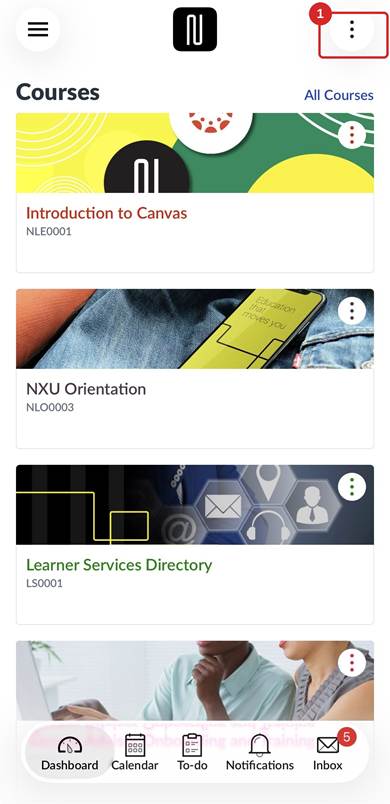
Open Options
From the Dashboard, tap the Options icon in the top right corner [1].
Step 2: Tap Manage Offline Content
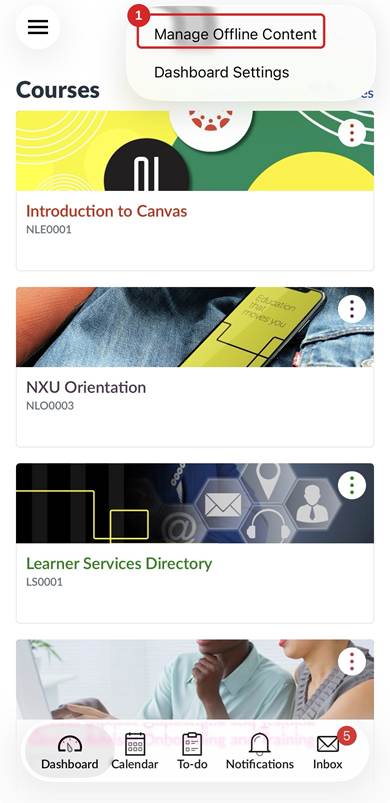
Manage Offline Content
Tap Manage Offline Content from the menu [1].
Step 3: Select your content
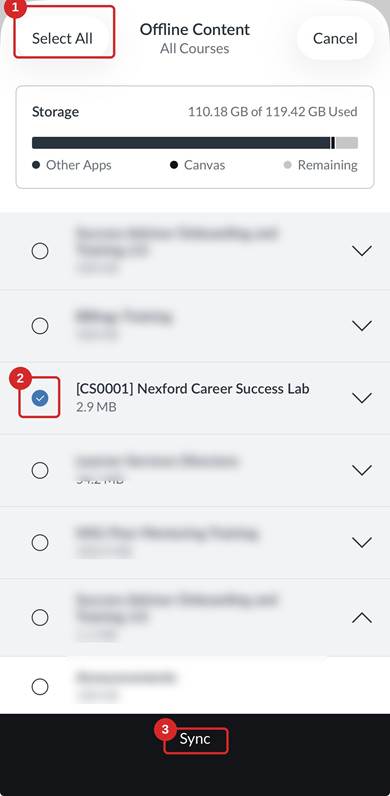
Select Content
Choose the courses you want available offline:
- Tap Select All to download every course [1], or
- Tap the circle next to a course name to select it individually [2].
- Then tap Sync [3].
Step 4: Confirm the sync
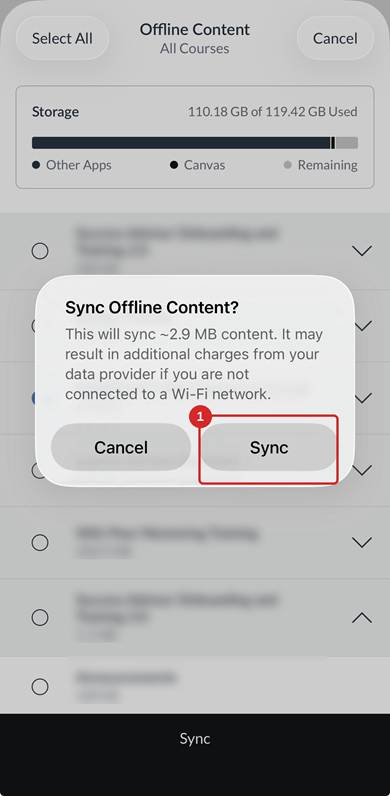
Confirm Sync
A confirmation message shows the approximate amount of data that will sync. Tap Sync to continue [1].
If you are not connected to Wi-Fi, this may use mobile data and result in additional charges from your provider.
Step 5: Wait for syncing to finish
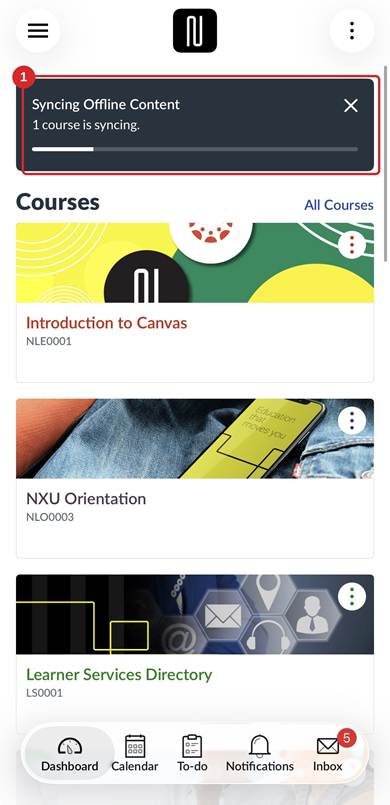
Syncing Progress
A progress bar on the Dashboard shows how the sync is progressing [1]. Downloaded content will be available offline once the sync is complete.
Step 6: View your course offline
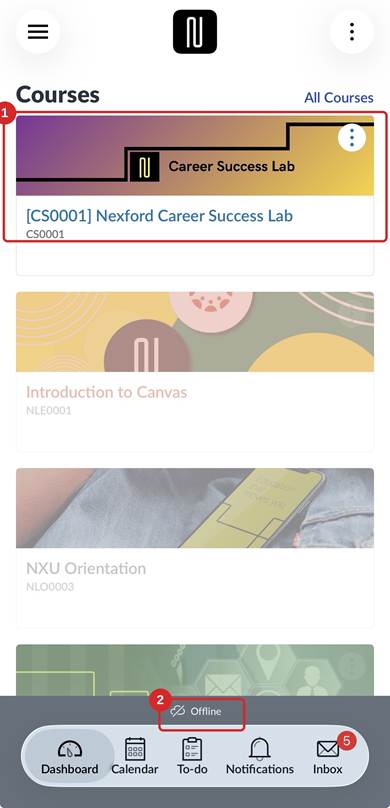
View Synced Course
When you lose your internet connection, only courses you have downloaded and synced will be available to view in the Canvas app [1]. An Offline indicator also displays at the bottom of the screen [2].
Next steps
- If a course does not appear offline, reconnect to the internet and repeat these steps to sync it.
- Some content, such as videos or interactive elements, may not be available offline even if the course has synced.
This article reflects the current version of the Canvas mobile app. Screens and menu labels may vary slightly by device and app version.
Was this article helpful?
That’s Great!
Thank you for your feedback
Sorry! We couldn't be helpful
Thank you for your feedback
Feedback sent
We appreciate your effort and will try to fix the article